Message Queueing
Keep your workflow uninterrupted with message queueing—send multiple messages while Roo is working, and they'll be processed sequentially without losing your train of thought.
No more waiting! Type your follow-up thoughts, corrections, or additional requests while Roo is still processing, and they'll be handled in order.
Overview
Message queueing lets you type and send messages while Roo is still working. Just type your message and hit Enter - it gets queued and will be processed as soon as Roo is ready for your next input.
If Roo is currently waiting on an approval prompt (for example: tool use, command execution, browser session launch, or MCP server use), the next queued message will be used to proceed past that prompt (equivalent to clicking “Approve”), even if auto-approval is disabled.
How It Works
While Roo is working:
- Type your message as normal
- Press Enter or click Send
- Message gets queued and appears with "Queued Messages:" label
- Roo processes the queued message as soon as it's ready for your next input. If Roo is blocked on an approval prompt, this may also implicitly approve the next pending approval prompt (e.g., tool use, command execution, browser session launch, or MCP server use)—even if auto-approval is disabled
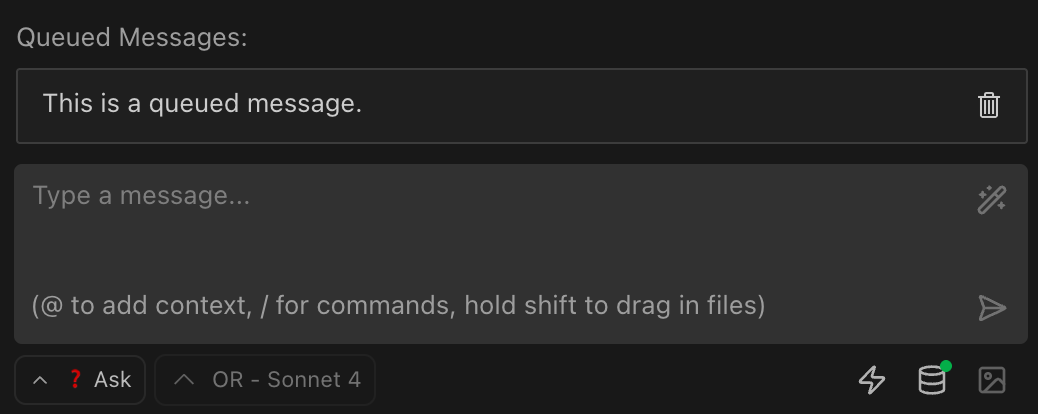
What you'll see:
- Queued messages appear with "Queued Messages:" label
- Bordered cards for each queued message
- Click messages to edit them
- Trash icon to delete messages
The input field stays active so you can type anytime - just hit Enter to queue your message.
If Roo is blocked on an approval prompt, processing a queued message can act like clicking “Approve” for that prompt (for example: tool use, command execution, browser session launch, or MCP server use)—even if auto-approval is disabled.
Editing or deleting a queued message requires clicking it before it's processed. In fast workflows this window can be extremely short; if you need a manual review step, avoid queueing until you're ready to approve.
Note: This behavior is distinct from Auto-Approving Actions and is not controlled by its settings.
FAQ
Q: How many messages can I queue? A: There is no hard limit on the number of messages you can queue. The queue size is only limited by available browser memory.
Q: Can I reorder queued messages? A: No, messages are always processed in the order they were sent (FIFO).
Q: Do queued messages require approval? A: No. If Roo is blocked on an approval prompt, processing a queued message can implicitly approve that prompt (for example: tool use, command execution, browser session launch, or MCP server use)—even if auto-approval is disabled. If you need a manual review step, do not queue the message; wait for the approval prompt and confirm manually.
Q: Why are my queued messages triggering auto-approval? A: This isn’t the Auto-Approving Actions setting. Queueing a message can let Roo proceed past an approval prompt without pausing. To avoid this, don’t queue when you need a manual review—wait for the approval prompt and confirm manually. See Auto-Approving Actions for settings-based approvals.
Q: What happens if Roo encounters an error? A: Queued messages remain in the queue. You can choose to cancel them or let processing continue.
Q: Do queued messages use the same context? A: Yes, each message builds on the conversation context, including previous messages and responses.
Q: Can I edit a queued message? A: Yes! Click on any queued message to edit it. Press Enter to save your changes or Escape to cancel editing. Multiple messages can be edited simultaneously.
See Also
- The Chat Interface - Learn about all chat features
- Task Management - Organize complex workflows
- Auto-Approving Actions - Streamline repetitive approvals
- Keyboard Shortcuts - Speed up your workflow